DIY Guide: Program Your Own NFC Tag
Follow these simple steps to set up your own NFC tag to work with ZenTap.
Get a Compatible Tag
First, you'll need a compatible NFC tag. Most NTAG (NTAG213, 215, 216) types will work. They are widely available and inexpensive online.
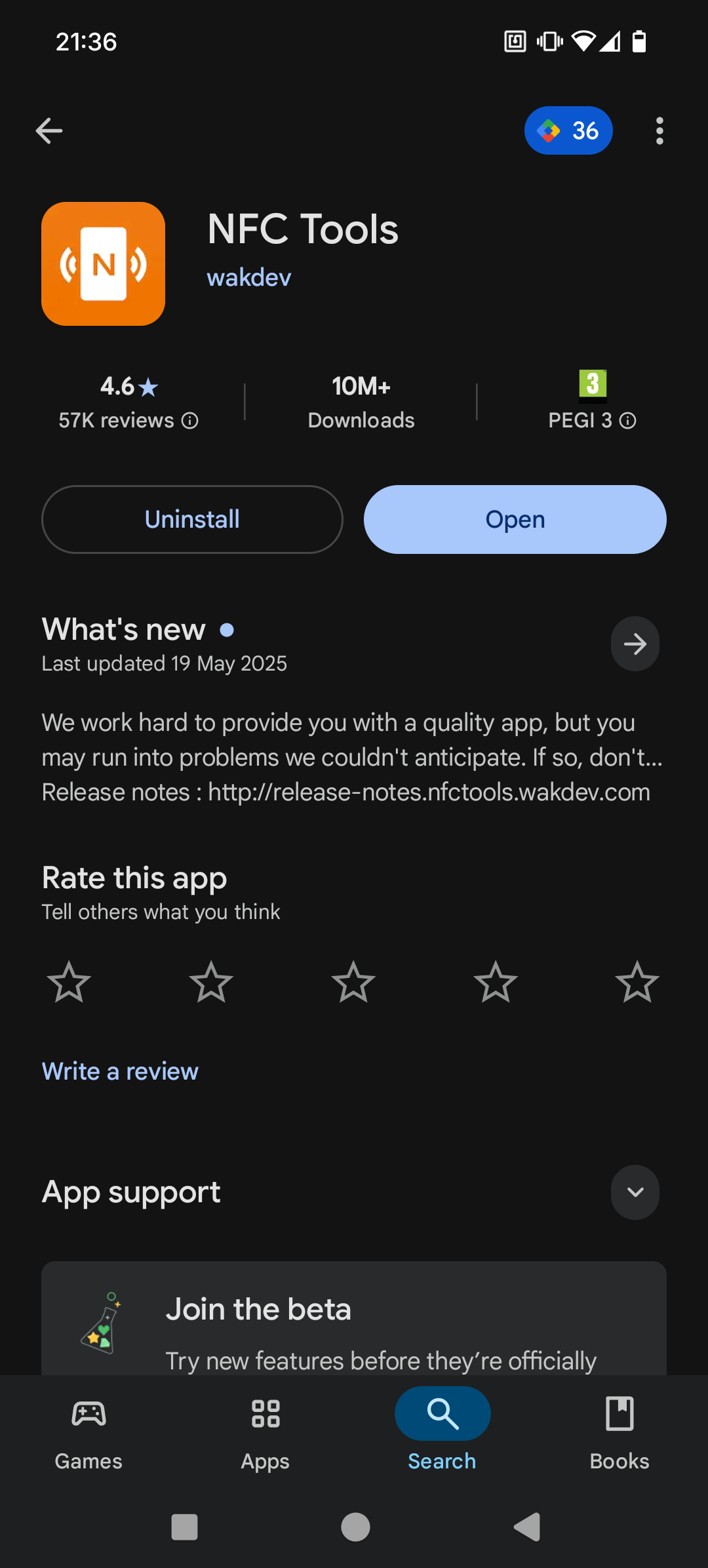
Download 'NFC Tools' App
You'll need an app that can write data to an NFC tag. We recommend 'NFC Tools', as it's free, popular, and easy to use.
Add a New Record
Open the 'NFC Tools' app, go to the 'Write' tab, and tap the 'Add a record' button.
Choose 'Custom URL/URI'
A list of record types will appear. Scroll down and select 'Custom URL/URI' from the options.
Enter Your Custom URI
This is the most important step. In the input field, type your unique URI in this format:zentap://tag/my-unique-id
The `my-unique-id` part can be any random text (e.g., 'office-tag' or '12345'). Just make it unique! Tap 'OK' when you're done.
Write to Your Tag
You'll be back on the 'Write' tab. Tap the large 'Write' button and then immediately hold your phone over your blank NFC tag to write the data.
You're All Set!
Once you see the 'Write complete' confirmation, that's it! Open the ZenTap app, and your tag is now ready to use to activate and deactivate focus mode.